
In this article:
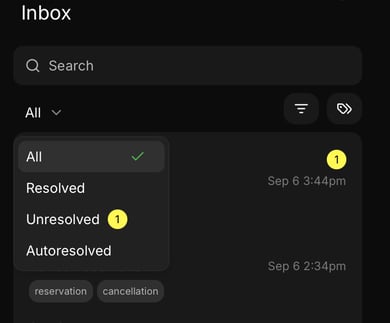
Inbox view
- Filter between 'All', 'Resolved', 'Unresolved', and 'Autoresolved' to see what works best for you and your team!
How to add prompts
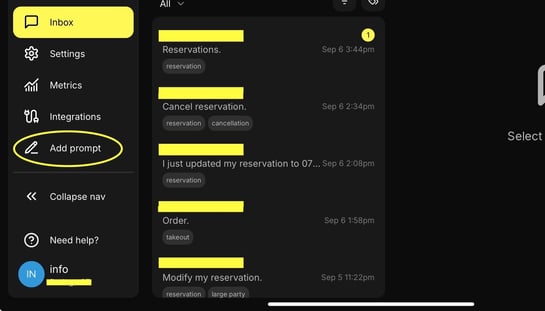
Go to your Hostie App and navigate to the left-hand menu.
Click 'Add prompt'
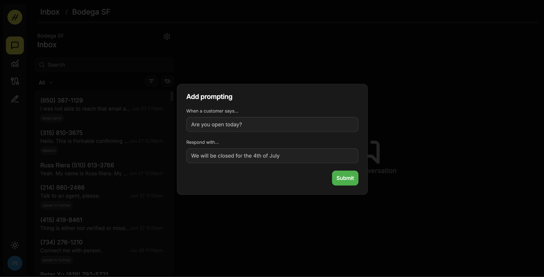
This will create a ticket in our system, and the prompt will be updated within 24 hours. Our team will reach out to confirm the change. For more urgent matters, please reach out to help@hostie.ai.
How to utilize this feature:
- This can be used to update the greeting for marketing purposes
- Example: "Hi, this is Jasmine with {your restaurant}, we will be open from 9 AM until 2 PM on Mother's Day! Would you like to book a reservation?"
- Let guests know you are open on a holiday
- Example: "Hi, this is Jasmine with {your restaurant}, we will be open from 12 PM until 9 PM for Labor Day! How may I help?"
Pro tip: Keep note of commonly asked questions that Hostie doesn’t have the answer to, so we can add the prompt for you!
How to view the most recent conversation
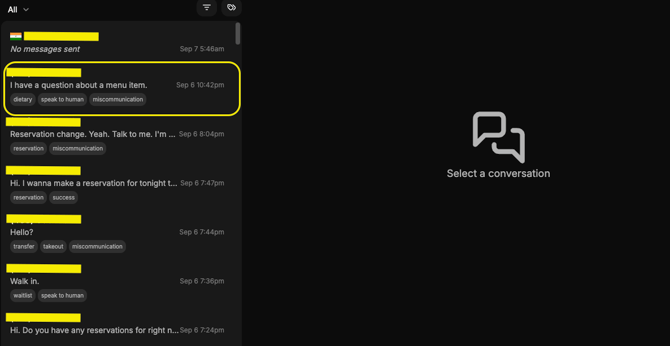
You can view all transcripts of every conversation a guest has had with Hostie in the Hostie App. Double-click the highlighted part to jump to the most recent conversation.
Commonly asked questions
- If I add a new prompt, will it override the old answer?
- Yes! The new prompt will override the old answer. Our team will reach out to confirm the prompt has been updated.
- What is the difference between 'resolved' and 'completed'?
- Resolved: for calls
- Complete: for calls and texts
- Note: Be sure to mark all text conversations as ‘complete’ to allow Hostie to respond to future messages
- How do I see the most recent conversation with one caller?
- Double-click the conversation to jump to the most recent conversation in the thread